Create Your First Excel Function
Learn how to create Python functions and publish them as Excel User Defined Functions (UDFs) that work just like native Excel formulas.
What Are Custom Functions?
Custom Functions (also called UDFs - User Defined Functions) let you:
- Write complex calculations in Python instead of Excel formulas
- Use Python libraries (pandas, numpy, scipy, etc.) in formulas
- Share logic across worksheets
- Build reusable function libraries
Once published, your Python functions become Excel formulas that:
- Appear in Excel's function autocomplete
- Recalculate automatically when inputs change
- Support different data types and dimensions
- Can return scalars, arrays, or streaming data
Step-by-Step Guide
Step 1: Write Your Function
Create a new module or use an existing one. Write a well-documented Python function:
def calculate_compound_interest(
    principal: float,
    rate: float,
    years: int,
    frequency: int = 12
) -> float:
    """Calculate compound interest.

    Args:
        principal: Initial investment amount
        rate: Annual interest rate (as decimal, e.g., 0.05 for 5%)
        years: Number of years
        frequency: Compounding frequency per year (default: 12 for monthly)

    Returns:
        Final amount after compound interest
    """
    amount = principal * (1 + rate / frequency) ** (frequency * years)
    return round(amount, 2)
Function Documentation
Always include a docstring with Args and Returns sections. This helps you and others understand the function later.
Step 2: Open Function Publisher
- Click the Functions tab in the right panel
- Ensure your module is selected in the dropdown
- Click Add Publication
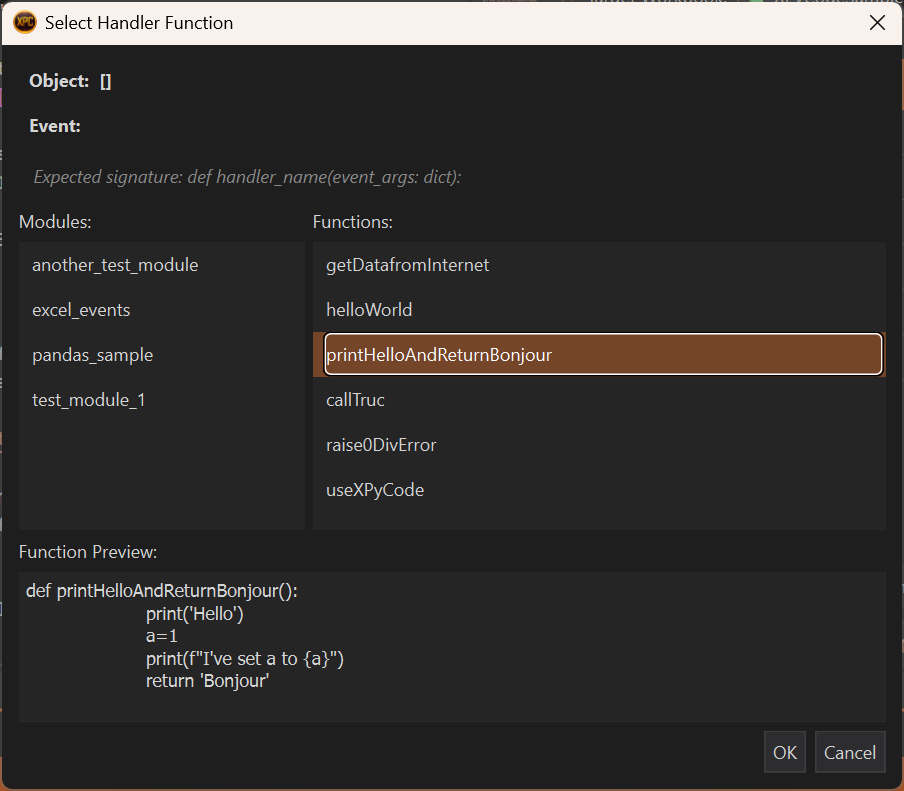
The Function Publisher scans your module and lists all eligible functions.
Step 3: Configure Function Settings
Select your function from the list and press OK. Then you can configure the function:
Publishing Name
The name users will type in Excel. Rules:
- UPPERCASE only (Excel convention) - User input is automatically converted to uppercase
- Letters, numbers, and underscores
- Must start with a letter
- Example:
COMPOUND_INTEREST
Naming Convention
Excel function names are case-insensitive but XPyCode enforces UPPERCASE to follow Excel standards.
Dimension
Choose how your function handles data:
- Scalar: Returns a single value (displayed in one cell)
- 1-Row: Returns a 1-D array displayed horizontally across columns
- 1-Column: Returns a 1-D array displayed vertically down rows
- 2-D: Returns a 2-D array displayed across rows and columns
For our compound interest function, choose Scalar since it takes individual values and returns a single result.
Streaming
Enable for generator functions that yield values over time. Leave unchecked for regular functions.
Automatic Streaming Detection
XPyCode automatically detects and sets the streaming flag for generator functions. This is reviewed before each synchronization. You can right-click on the streaming option to manually request a check to verify if the function is a generator.
# Example of a streaming function
def generate_sequence(start: int, count: int):
    """Generate a sequence of numbers."""
    for i in range(count):
        yield start + i
Step 4: Synchronization to Excel (Automated)
Immediate Publication
The function is published as soon as it's added to the publication list. Code modifications are immediately taken into account at the next computation.
The Sync to Excel button is used to:
- Force resynchronization in case of issues
- Update Excel when the function signature changes (e.g., number or type of arguments)
Recomputation Trigger
Publishing a new function or forcing resynchronization will trigger recomputation of all XPyCode functions in the workbook and reinitialize streaming functions.
Step 5: Use in Excel
Open your workbook and type the function name in a cell:
Excel will:
- Show autocomplete as you type
- Display parameter hints
- Calculate the result (16470.09)
- Recalculate if you change any input cell
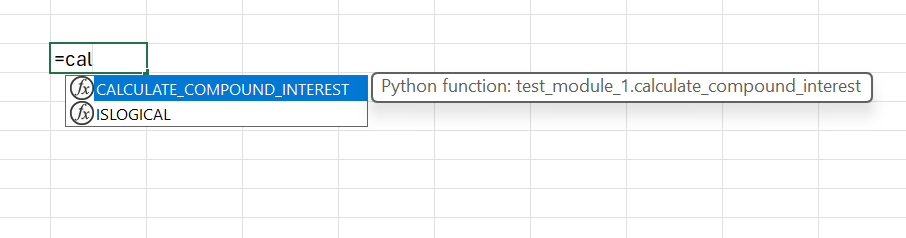
Function Working
Congratulations! You've created your first Excel function powered by Python.
Understanding Dimensions
The dimension setting controls how your function returns data to Excel and how it will be displayed in the spreadsheet.
Scalar Dimension
Returns a single value
def add_tax(amount: float, rate: float = 0.1) -> float:
    """Add tax to an amount."""
    return amount * (1 + rate)
Usage in Excel:
Best for: Simple calculations, single-cell inputs
1-Row & 1-Column Dimension
Returns a 1-D array
- 1-Row: The output is displayed horizontally in one row across multiple columns
- 1-Column: The output is displayed vertically in one column across multiple rows
def apply_discount(prices: list[float], discount: float) -> list[float]:
    """Apply discount to each price."""
    return [price * (1 - discount) for price in prices]
Usage in Excel (as array formula):
Each element is processed independently.
Best for: Transformations, element-wise operations
2-D Dimension
Returns a 2-D array
The output is displayed across multiple rows and columns.
def create_multiplication_table(size: int) -> list[list[int]]:
    """Create a multiplication table."""
    return [[i * j for j in range(1, size + 1)] for i in range(1, size + 1)]
Usage in Excel:
Best for: Complex outputs, multi-dimensional results
Advanced Features
Type Hints
Use Python type hints for better IntelliSense:
from typing import Optional, Union

def format_currency(
    amount: float,
    currency: str = "USD",
    decimals: Optional[int] = 2
) -> str:
    """Format a number as currency."""
    if decimals is None:
        decimals = 2
    symbol = {"USD": "$", "EUR": "€", "GBP": "£"}.get(currency, currency)
    return f"{symbol}{amount:,.{decimals}f}"
Default Arguments
Provide sensible defaults:
def calculate_payment(
    principal: float,
    rate: float,
    periods: int,
    future_value: float = 0,
    when: int = 0  # 0 = end of period, 1 = beginning
) -> float:
    """Calculate loan payment."""
    # Implementation here
    pass
In Excel, you can omit parameters with defaults:
Error Handling
Handle errors gracefully:
def safe_divide(a: float, b: float) -> Union[float, str]:
    """Divide two numbers safely."""
    if b == 0:
        return "#DIV/0!"  # Excel error code
    return a / b
Using Libraries
Leverage Python libraries:
import numpy as np
from scipy import stats

def calculate_correlation(x: list[float], y: list[float]) -> float:
    """Calculate Pearson correlation coefficient."""
    if len(x) != len(y) or len(x) < 2:
        return float('nan')
    correlation, _ = stats.pearsonr(x, y)
    return correlation
Remember to install required packages through the Package Manager first!
Updating Functions
To modify a published function:
- Edit your Python code in the module
- Changes take effect automatically at the next computation
- If the function signature changes (number or type of arguments): Press Sync to Excel
Formula Refresh
After republishing, you may need to force Excel to recalculate: press Ctrl+Alt+F9, especially with Streaming function Nevertheless, the Sync to Excel usually force recomputation of all xpycode function in Excel
Unpublishing Functions
To remove a function from Excel:
- Open Functions tab
- Select the function
- Click Remove Publication
The function will no longer be available in Excel, and cells using it will show #NAME? error.
Troubleshooting
Function Not Appearing in Excel
- Verify the function was published (check status in Function Publisher)
- Try closing and reopening the workbook
- Check the Console for error messages
#NAME? Error in Excel
- The function name might be misspelled
- The function may have been unpublished
- The Python kernel might have crashed (check Console)
Wrong Results
- Verify the dimension setting matches your function's behavior
- Check for type conversion issues (strings vs numbers)
- Test the function in the IDE with sample inputs
- Add print statements to debug
Performance Issues
- For large arrays, consider optimizing with numpy
- Use caching for expensive calculations
- Check if dimension is set correctly
- Profile your function code
Next Steps
Now that you can create custom functions:
- Excel Integration Guide - Deep dive into function publishing
- Data Analysis Tutorial - Build practical functions with pandas
- API Integration Tutorial - Create functions that fetch live data