Excel Addin
The XPyCode Taskpane is the main interface for interacting with Python in Excel. It provides quick access to essential features, displays real-time console output, and allows you to manage your XPyCode environment.
Taskpane Overview
The taskpane appears as a sidebar in Excel and consists of several key areas:
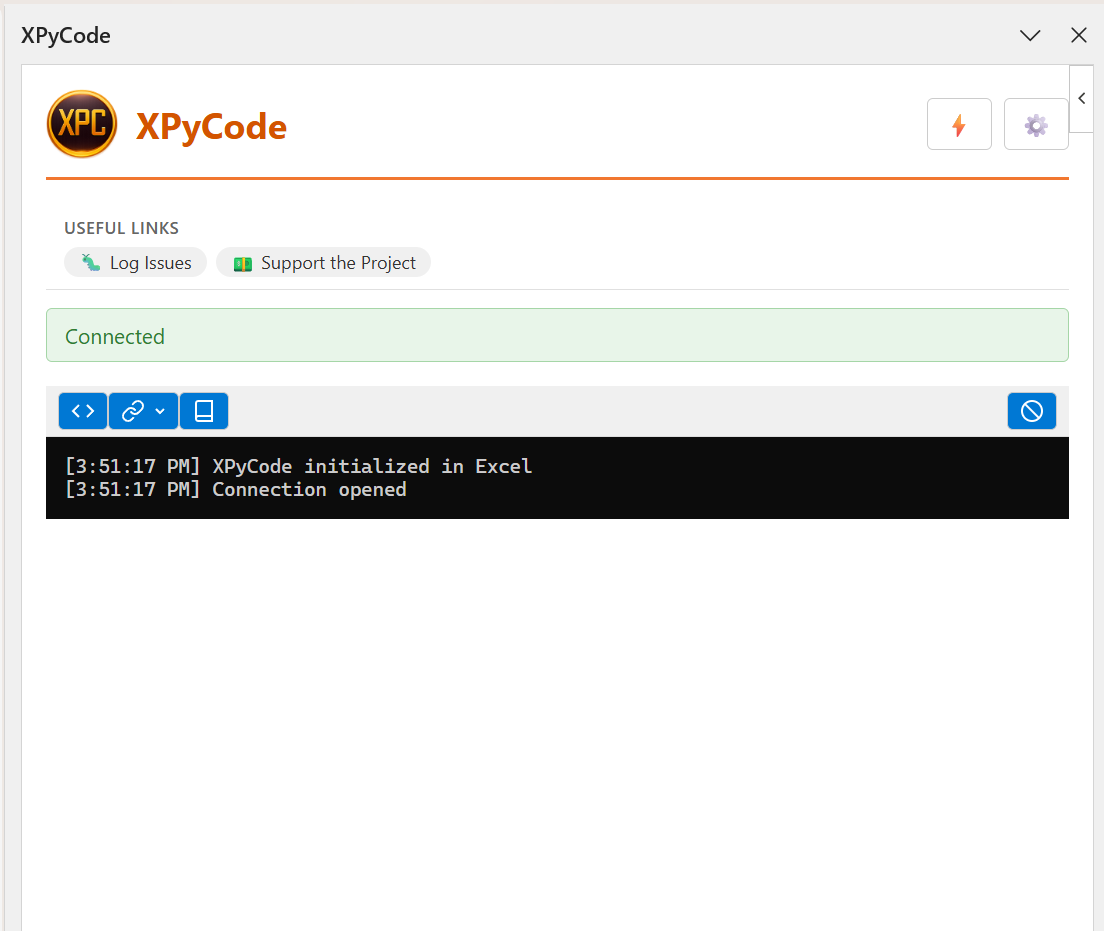
- Header - XPyCode branding with Settings and Advanced Actions buttons
- Useful Links - Quick access to documentation and resources
- Status Indicator - Connection status display
- Toolbar - Main action buttons
- Console Area - Real-time Python output and error messages
Toolbar Features
The toolbar provides one-click access to common operations:

Show Editor Button
Opens the XPyCode IDE window where you can write and edit Python code.
- Icon: Code brackets symbol (
</>) - Action: Launches the full IDE interface
- Keyboard Shortcut: None (click to activate)
Quick Access
The Show Editor button is the fastest way to open the IDE from within Excel. You can also use the ribbon button.
Bindings Dropdown
Create and manage Excel bindings to connect Python code with Excel ranges, tables, and text.
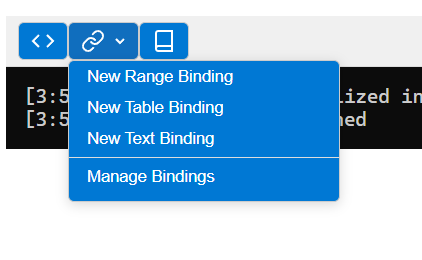
Available options:
- New Range Binding - Bind to a cell range (e.g., A1:C10)
- New Table Binding - Bind to an Excel table
- New Text Binding - Bind to a single cell's text content
- Manage Bindings - View, edit, or delete existing bindings
About Bindings
Bindings allow your Python code to react to changes in specific Excel ranges. When data changes in a bound range, your Python code can automatically respond. See the Events Guide for more details.
Creating a New Binding
- Click the Bindings dropdown button (link icon)
- Select the binding type (Range, Table, or Text)
- Enter a unique binding name
- Select the range/table in Excel
- The binding is created and ready to use in Python
Managing Existing Bindings
The Manage Bindings dialog shows all bindings organized by type:
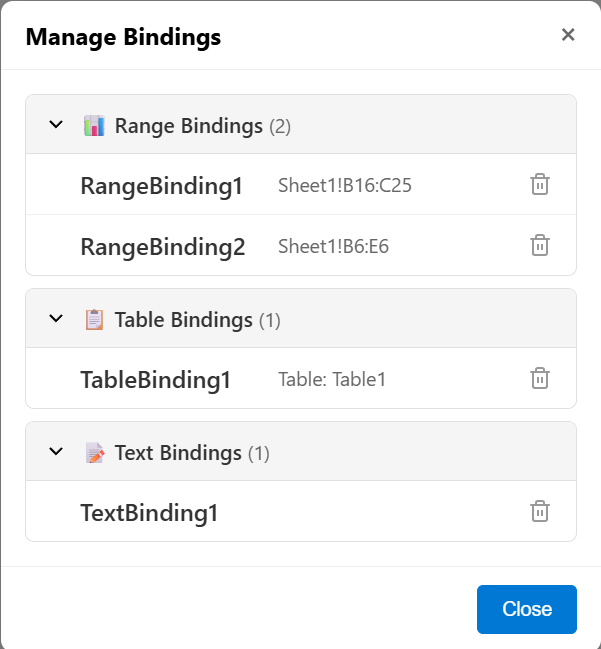
- Range Bindings - Collapsible section showing all range bindings
- Table Bindings - Collapsible section showing all table bindings
- Text Bindings - Collapsible section showing all text bindings
Each binding displays:
- Binding name/ID
- Referenced range or table
- Delete button to remove the binding
Deleting Bindings
Deleting a binding will prevent any event handlers that reference that binding from working. Make sure to update your Python code accordingly.
Documentation Button
Opens the XPyCode documentation website in your default browser.
- Icon: Book symbol
- Action: Opens The documentation web page
- Use Case: Quick access to help and reference materials
Clear Console Button
Clears all output from the console area, providing a fresh start.
- Icon: Circle with diagonal line (clear/cancel symbol)
- Action: Removes all console messages
- Use Case: Clean up console when it gets cluttered
Console Management
The console can be configured to auto-clear on each code execution. See Settings Dialog for details.
Settings Button
Opens the settings dialog to configure taskpane behavior.
- Icon: Gear/cog symbol ⚙️
- Location: Top-right corner of header
- Action: Opens settings dialog (see below)
Advanced Actions Button
Opens the advanced actions dialog for system-level operations.
- Icon: Lightning bolt symbol ⚡
- Location: Top-right corner of header (left of Settings)
- Action: Opens advanced actions dialog (see below)
Advanced Actions
These actions are for advanced users and can stop or restart XPyCode components. Use with caution.
Settings Dialog
Configure taskpane preferences to customize your workflow:
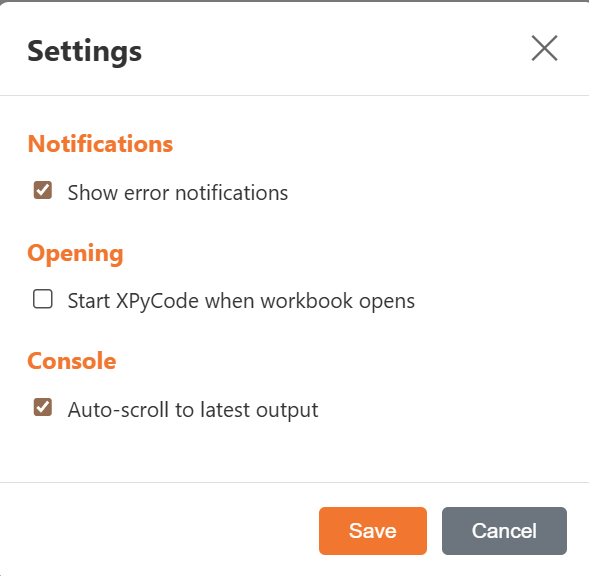
Show error notifications
Controls whether error messages appear as popup notifications.
- Default: Enabled (checked)
- When enabled: Errors trigger notification popups
- When disabled: Errors only appear in console
- Use Case: Disable if you prefer to monitor console only
Start XPyCode when workbook opens
Automatically start XPyCode when opening the workbook.
- Default: Disabled (unchecked)
- When enabled: XPyCode loads automatically on workbook open
- When disabled: Must manually start XPyCode
- Use Case: Enable for workbooks you use frequently
Startup Behavior
This setting uses Office's StartupBehavior API. The add-in will load in the background when you open the workbook.
Auto-scroll to latest output
Automatically scroll the console to show the most recent output.
- Default: Enabled (checked)
- When enabled: Console scrolls to bottom when new output appears
- When disabled: Console stays at current scroll position
- Use Case: Disable if you're reviewing older console messages
Saving Settings
Click Save to apply changes and persist them to the workbook. Settings are stored using Office's document settings API and will be preserved when you save the workbook.
Click Cancel to close the dialog without saving changes.
Advanced Actions Dialog
The Advanced Actions dialog provides system-level operations organized into three tabs:
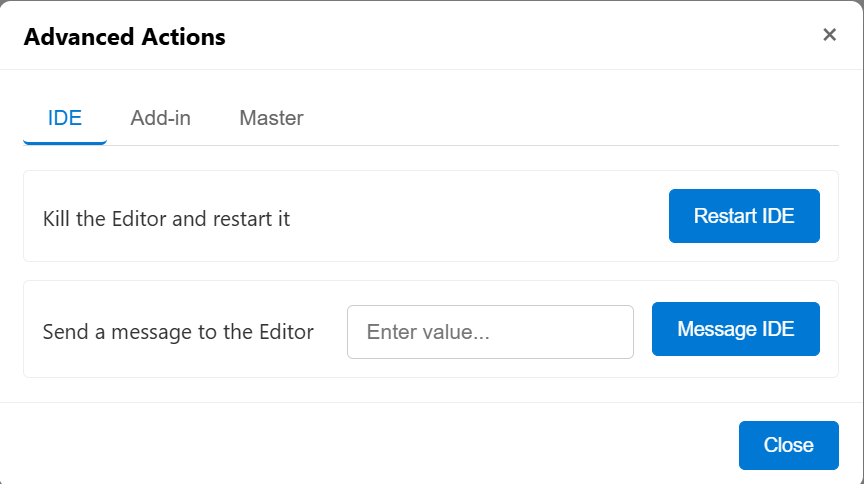
IDE Tab
Operations related to the XPyCode IDE (Editor) window:
Restart IDE
Description: Kill and restart the Editor
- What it does: Closes the IDE window and starts a new instance
- When to use: If the IDE becomes unresponsive or displays incorrectly
- Note: Your code is auto-saved, so you won't lose work
Active Debugging
Restarting the IDE will stop any active debugging session.
Message IDE
Description: Send a message to the Editor
- Requires input: Yes (text message)
- What it does: Sends a custom message to the IDE
- When to use: For debugging or testing IDE communication
- Note: This is an advanced feature primarily for development purposes
Add-in Tab
Operations related to the Excel Add-in (Taskpane):
Flush Messages
Description: Delete all queued messages not yet displayed
- What it does: Clears the message box queue
- When to use: If you have many pending message boxes you want to skip
- Effect: Pending
showMessageBox()calls won't display
Message Queue
When Python code calls showMessageBox(), messages are queued if a dialog is already open. This action clears that queue.
Restart Add-in
Description: Reload the add-in
- What it does: Reloads the taskpane interface
- When to use: If the taskpane becomes unresponsive
- Important: The Python kernel will also restart, losing all variables in memory
Data Loss
Restarting the add-in will clear all Python variables and objects from memory. Save any important data to Excel before restarting.
Master Tab
Operations related to the XPyCode Master (backend service):
Kill Master
Description: Stop XPyCode Master completely (Stops everything)
- What it does: Shuts down the entire XPyCode backend service
- When to use: When you want to completely stop XPyCode
- Effect: IDE, kernels, and all XPyCode processes stop
Complete Shutdown
This stops all XPyCode components. You'll need to restart XPyCode manually after using this action.
Restart Master
Description: Restart XPyCode Master (Stops and Restarts everything)
- What it does: Stops and restarts the entire XPyCode backend
- When to use: After installing system-level Python packages or if experiencing issues
- Effect: All kernels restart, clearing variables in memory
Full Reset
This is equivalent to completely stopping and starting XPyCode. All running code stops and all variables are lost.
Restart Kernel
Description: Stop and restart the Python Kernel for current workbook
- What it does: Restarts only the Python kernel for this workbook
- When to use:
- After installing new packages
- To clear all variables and start fresh
- If the kernel becomes unresponsive
- Effect: All variables and imports are cleared
Quick Reset
This is the recommended way to get a "fresh start" without affecting other workbooks or closing the IDE.
Confirming Actions
Most advanced actions require confirmation before executing:
Review the action description carefully before clicking Yes.
Console Area
The console displays real-time output from your Python code:
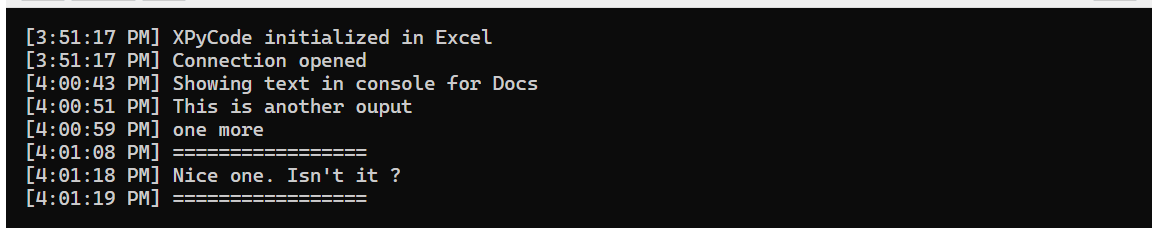
Output Types
The console displays several types of messages:
- Standard output -
print()statements from your code - Error messages - Python exceptions and traceback
- System messages - XPyCode status messages
- Execution results - Return values from functions
Formatting
- Font: Monospace font (Cascadia Mono, Consolas, Courier New)
- Colors: Dark background (#0c0c0c) with light text (#cccccc)
- Timestamps: Some messages include timestamps for tracking execution
- Word wrap: Long lines wrap automatically for readability
Console Features
- Auto-scroll: Automatically scrolls to latest output (configurable in settings)
- Scrollable history: Scroll up to view previous output
- Clear button: Quick clear via toolbar button
- Copy support: Select and copy text from console
Console Tips
- Use
print()statements for debugging - Errors show full Python traceback for troubleshooting
- Clear console periodically to improve performance with large outputs
Useful Links Section
Quick access to important resources:

The links section typically includes:
- Documentation - Full documentation website
- GitHub Issues - Report bugs and request features
- Support - Get help with XPyCode
- Additional resources - Tutorials, examples, etc.
Links appear as clickable chips and open in your default browser.
Status Indicator
The status indicator shows the connection state between the taskpane and XPyCode backend:
Connection States
Disconnected (Red) - XPyCode backend is not running - Cannot execute Python code - Action required: Start XPyCode Master
Connected (Green) - Successfully connected to backend - Ready to execute Python code - Normal operating state
Connection Status
If you remain disconnected, verify that XPyCode Master is running. Check the Troubleshooting Guide for help.
Error Indicator
When errors occur, an error indicator may appear below the status indicator:
- Color: Red background with red border
- Behavior: Click to view error details
- Auto-hide: Can be configured in settings
Error notifications provide quick visibility of problems without cluttering the console.
Common Tasks
Starting the IDE
- Ensure status shows "Connected" (green)
- Click the Show Editor button (<>)
- The IDE window opens in a separate window
Creating a Range Binding
- Click the Bindings dropdown (link icon)
- Select New Range Binding
- Enter a binding name (e.g., "InputData")
- Click Select Range
- Select the range in Excel
- Binding is created and visible in Manage Bindings
Clearing Old Output
Option 1: Click the Clear Console button (circle-slash icon)
Option 2: Enable auto-clear in settings: 1. Click Settings button (gear icon) 2. Check Clear on Run option 3. Click Save
Next Steps
Explore related documentation:
-
IDE Overview
Learn about the full-featured Python IDE for Excel.
-
Settings
Configure IDE and system preferences.
-
Custom Functions
Publish Python functions as Excel formulas.
-
Events
React to Excel events with Python code.
Need Help?
If you encounter issues with the taskpane, check the Troubleshooting Guide or visit our GitHub Issues page.