Custom Functions
Learn how to publish Python functions as Excel User Defined Functions (UDFs) that work just like native Excel formulas.
Overview
Custom Functions allow you to:
- Use Python logic in Excel formulas
- Leverage Python libraries (pandas, numpy, scipy, etc.)
- Create reusable calculation libraries
- Share complex algorithms with Excel users
- Build domain-specific formula sets
Once published, your Python functions become Excel formulas:
Publishing Functions
Using Function Publisher
- Open the Functions panel (right dock)
- Select your workbook from the dropdown
- Click Add Publication
- Select the module and function
- Review the Publishing Name
- Review the Dimension
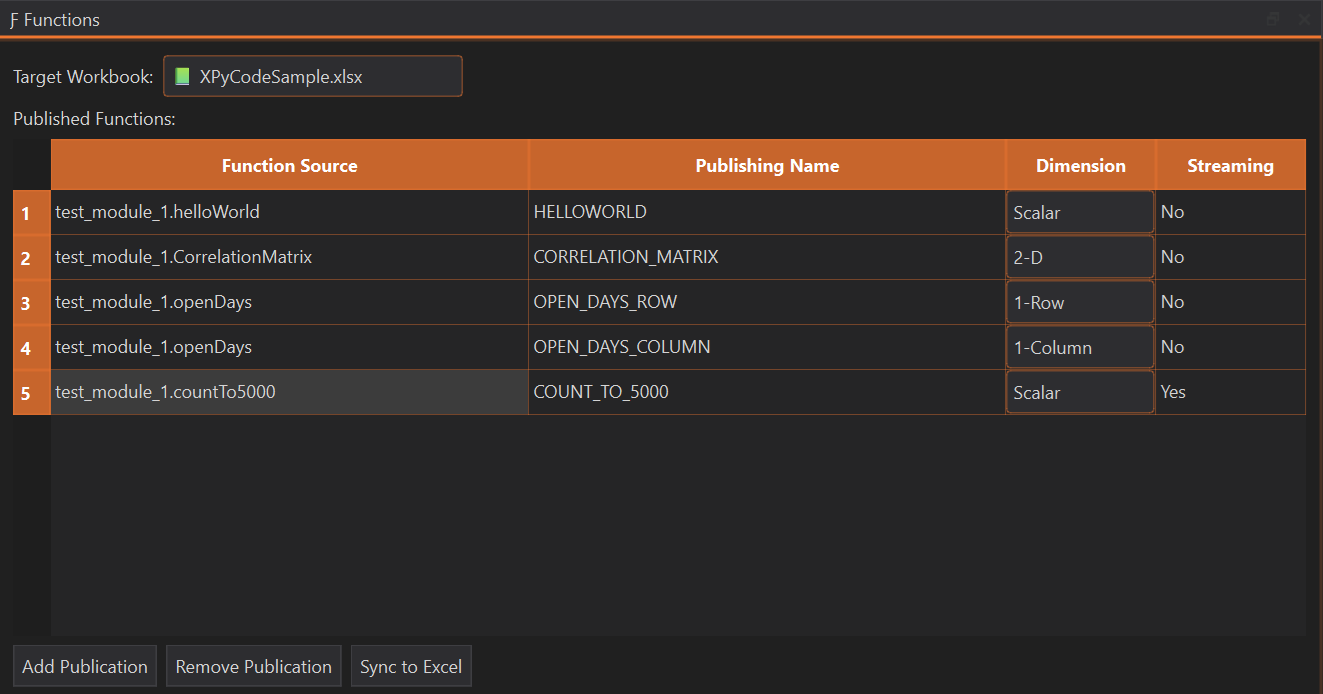
See the First Function guide for a detailed walkthrough.
Function Requirements
Basic Structure
def my_function(param1: type1, param2: type2) -> return_type:
    """Function docstring.

    Args:
        param1: Description
        param2: Description

    Returns:
        Description of return value
    """
    # Function body
    return result
Type Hints (Recommended)
Use type hints for better IntelliSense in Excel:
def calculate_payment(
    principal: float,
    rate: float,
    periods: int
) -> float:
    """Calculate loan payment amount."""
    return principal * (rate * (1 + rate)**periods) / ((1 + rate)**periods - 1)
Default Parameters
Provide default values for optional parameters:
def format_number(
    value: float,
    decimals: int = 2,
    thousands_sep: bool = True
) -> str:
    """Format a number as a string."""
    if thousands_sep:
        return f"{value:,.{decimals}f}"
    return f"{value:.{decimals}f}"
In Excel:
=FORMAT_NUMBER(1234.5)           → "1,234.50"
=FORMAT_NUMBER(1234.5, 0)        → "1,235"
=FORMAT_NUMBER(1234.5, 3, FALSE) → "1234.500"
Dimension Types
The dimension setting controls how your function send data to Excel:
Scalar Dimension
One value out
def add_tax(amount: float, rate: float = 0.1) -> float:
    """Add tax to an amount."""
    return amount * (1 + rate)
Usage in Excel:
Best for: Simple calculations, single-cell inputs
1-Row & 1-Column Dimension
1 dimension array out (element-wise)
1-Row: The output will be displayed in one row and several columns 1-Column: The output will be displayed in several rows and one column
def apply_discount(prices: list[float], discount: float) -> list[float]:
    """Apply discount to each price."""
    return [price * (1 - discount) for price in prices]
Usage in Excel (as array formula):
Each element is processed independently.
Best for: Transformations, element-wise operations
2-D
2 dimensions array out
The output will be displayed in one row and several columns
def create_multiplication_table(size: int) -> list[list[int]]:
    """Create a multiplication table."""
    return [[i * j for j in range(1, size + 1)] for i in range(1, size + 1)]
Usage in Excel:
Best for: Complex outputs, multi-dimensional results
Streaming Functions
Generator functions that yield results over time:
def fibonacci_sequence(count: int):
    """Generate Fibonacci numbers."""
    a, b = 0, 1
    for _ in range(count):
        yield a
        a, b = b, a + b
Configure as streaming in Function Publisher. Excel receives values as they're generated.
Streaming Behavior
Streaming functions are useful for: - Progress updates - Incremental calculations - Large result sets - Real-time data feeds
CPU-Friendly Streaming
The streaming implementation reads from generators with a small asyncio.sleep() interval, preventing 100% CPU usage during continuous updates.
Streaming Function Mutualization
In Excel, streaming functions with the same name and parameters are mutualized—they return the same result across all cells. To get independent streams per cell, add a unique parameter (e.g., a timestamp or cell reference) to differentiate each call. To restart all streaming functions from scratch, trigger a full calculation in Excel.
Publication Impact on Streaming
Any publication changes (even publishing non-streaming functions) or clicking the Sync to Excel button will reset all streaming functions, causing them to restart from the beginning.
Excel Integration
Function Names
Rules for Excel function names:
- UPPERCASE only (enforced by XPyCode to match Excel UDF naming convention)
- Letters, numbers, underscores
- Must start with a letter
- No spaces or special characters
- Maximum 255 characters (practical limit ~30)
Why UPPERCASE?
Excel's native User Defined Functions (UDFs) follow an UPPERCASE naming convention. XPyCode enforces this to ensure consistency with Excel's built-in functions and prevent naming conflicts.
Examples:
- ✅ CALCULATE_ROI, GET_PRICE, NPV_CUSTOM
- ❌ calculateROI, get-price, 123NPV
Return Values
Your function can return:
Scalar Values
Lists (Arrays)
2D Lists (Ranges)
Pandas DataFrames
Pandas Automatic Conversion
pandas Series and DataFrame objects are automatically converted to 2D arrays when sent to Excel, making them directly usable in cells and ranges.
Error Handling
Return Excel error codes:
def safe_divide(a: float, b: float) -> Union[float, str]:
    """Divide safely, returning Excel error on division by zero."""
    if b == 0:
        return "#DIV/0!"  # Excel error code
    return a / b
Excel error codes:
- #DIV/0! - Division by zero
- #N/A - Not available
- #NAME? - Invalid name
- #NULL! - Null value
- #NUM! - Invalid number
- #REF! - Invalid reference
- #VALUE! - Wrong value type
Type Conversions
XPyCode automatically converts between Python and Excel types:
| Python | Excel |
|---|---|
int, float |
Number |
str |
Text |
bool |
TRUE/FALSE |
None |
Empty cell |
list |
Array/Range |
datetime |
Date/Time |
Updating Functions
To modify a published function:
- Edit the Python code
- Save the module (auto-save enabled)
- Re-publish using Function Publisher
- Excel formulas update automatically
Force Recalculation
After republishing, press Ctrl+Alt+F9 in Excel to force recalculation of all formulas.
Unpublishing Functions
To remove a function from Excel:
- Open Function Publisher
- Select the function
- Click Remove Publication
Cells using the function will show #NAME? error.
Example Library
Create a custom function library:
# statistics.py - Custom statistical functions

import numpy as np
from scipy import stats
from typing import List, Union

def percentile_rank(value: float, data: List[float]) -> float:
    """Calculate percentile rank of a value in a dataset."""
    return stats.percentileofscore(data, value)

def z_score(value: float, data: List[float]) -> float:
    """Calculate z-score (standard score) of a value."""
    mean = np.mean(data)
    std = np.std(data, ddof=1)
    if std == 0:
        return float('inf') if value > mean else float('-inf')
    return (value - mean) / std

def moving_average(data: List[float], window: int) -> List[float]:
    """Calculate simple moving average."""
    if window <= 0 or window > len(data):
        return [float('nan')] * len(data)
    result = []
    for i in range(len(data)):
        if i < window - 1:
            result.append(float('nan'))
        else:
            result.append(sum(data[i-window+1:i+1]) / window)
    return result

def correlation_matrix(ranges: List[List[float]]) -> List[List[float]]:
    """Calculate correlation matrix for multiple data series."""
    data = np.array(ranges)
    return np.corrcoef(data).tolist()
Publish as: PERCENTILE_RANK, Z_SCORE, MOVING_AVERAGE, CORRELATION_MATRIX
Next Steps
-
Events
Learn to handle Excel events with Python.
-
Excel Objects
Work with workbooks, sheets, and ranges in Python.
-
Tutorials
Build practical functions with step-by-step tutorials.
Function Libraries
Build a library of reusable functions for your domain. Share the Python module with colleagues so they can use the same functions.