Excel Events
Handle Excel events with Python code to create interactive and responsive spreadsheets.
Overview
Excel events let you run Python code automatically when:
- A cell selection changes
- A worksheet is activated
- Cell values are edited
- A calculation completes
- The workbook is opened or closed
- All events managed by Microsoft Office.js
This enables:
- Validation - Check input data as it's entered
- Automation - Update cells automatically
- Monitoring - Log user actions
- Interactivity - Respond to user selections
Event Manager
Configure event handlers through the Event Manager panel:
- Open the Events tab (right dock)
- Select the workbook from the list
- Select the object for which you want to add an event handler
- Select the event you want to listen to on the right
- Either:
- Double-click to create a new handler (generates a function with the correct signature)
- Right-click and select Create New Handler... to create a new function
- Right-click and select Assign Handler... to select an existing function
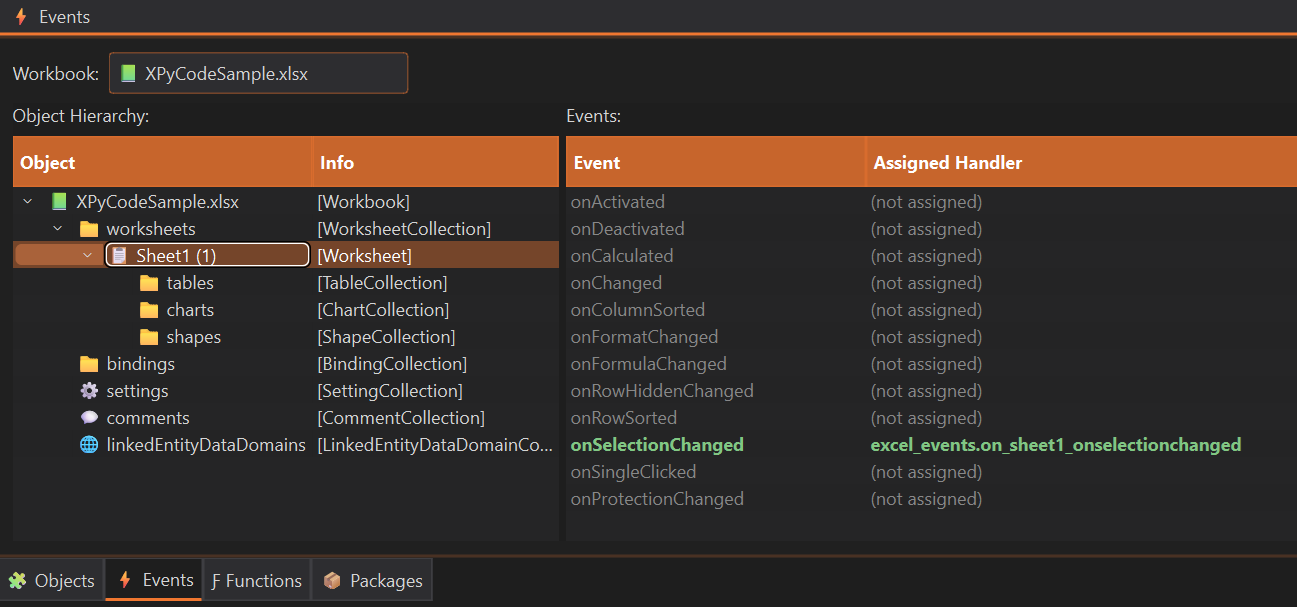
Available Events
Office.js Events
All Office.js events can be managed through XPyCode's Event Manager. For a complete list of available events, see the Excel JavaScript API Events documentation.
Unregister Handler
To stop listening to an event:
- Open the Events tab (right dock)
- Select the workbook from the list
- Select the object with the event handler you want to remove
- Select the event you want to stop listening to on the right
- Right-click and select Clear Handler
The event handler function remains in your code but is no longer triggered by the event.
Next Steps
-
Excel Objects
Learn to work with workbooks, sheets, and ranges.
-
Custom Functions
Publish Python functions as Excel formulas.
-
Automation Tutorial
Build automated workflows with events.
-
On-Time Events
Schedule Python functions with time-based triggers.
Start Simple
Begin with simple event handlers (logging, validation) before building complex automation. Test thoroughly to avoid infinite loops.