Console
The Console panel displays output, errors, and logging information from your Python code execution. It's an essential tool for debugging and monitoring code behavior.
Overview
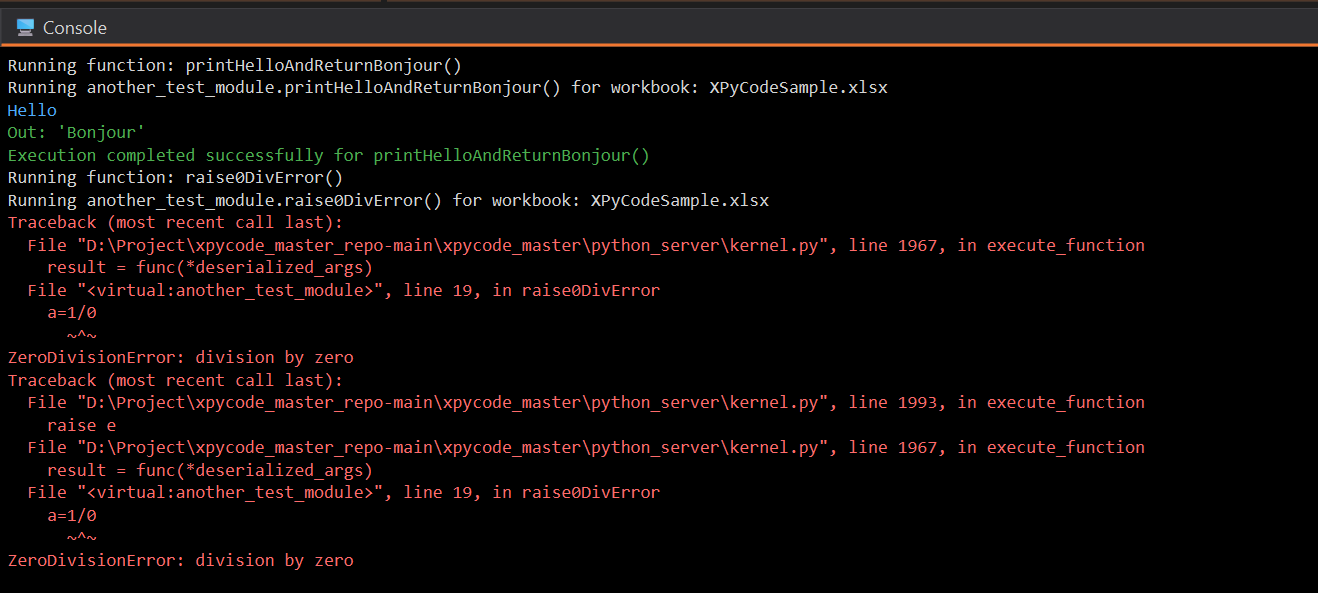
The Console is located at the bottom of the IDE and shows:
- Standard output (
print()statements) - Standard error (exceptions and errors)
- System messages (IDE notifications)
- Execution status (running, completed, failed)
Output Types
The console uses color-coding for different message types:
Standard Output (White/Default)
Regular print statements and normal output:
Errors (Red)
Python exceptions and error messages:
Warnings (Yellow)
Warning messages from XPyCode core processes.
Print Messages (Blue)
Informational logging:
Success Messages (Green)
Success indicators from the IDE:
Console Settings
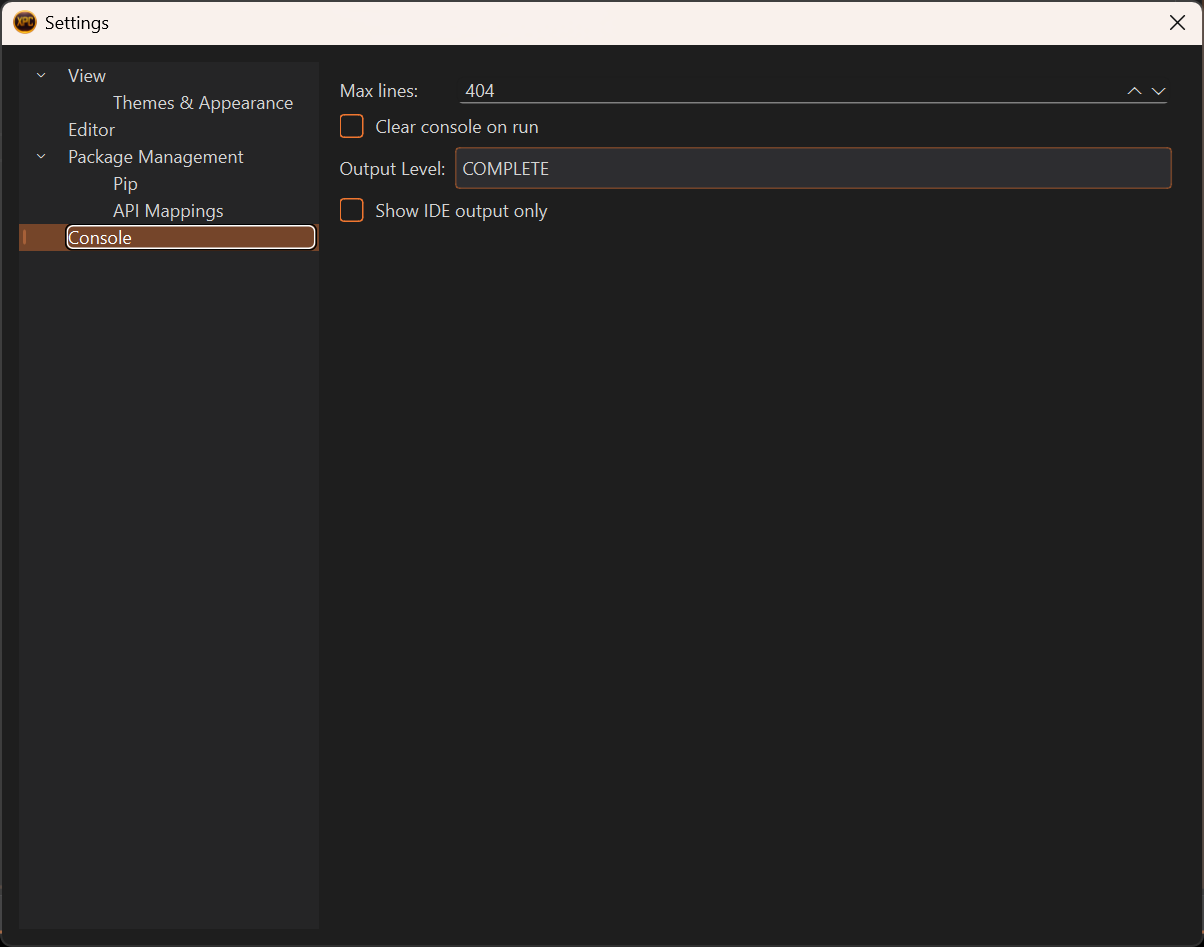
Configure console behavior in File → Settings → Console:
Output Level
Control which messages appear:
- SIMPLE - Messages for usual users
- DETAILED - More messages, including a more verbose communication for advanced users
- COMPLETE - Show everything. Including some logging messages from all XPyCode components
Default: COMPLETE
Max Lines
Maximum number of lines to keep in console:
- Default: 1000
- Range: 100-10000
- Older lines are automatically removed
Prevents memory issues with long-running scripts.
Clear on Run
Automatically clear console when running code:
- Default: Enabled
- When disabled: Output accumulates across runs
Console Only IDE
Show only messages for functions launched via the IDE:
- Default: Disabled
- When enabled: Hides messages (print, error, ....) from functions launched within Excel (functions and events)
- Useful for cleaner output
Console Features
Auto-Scroll
Console automatically scrolls to show new output:
- Scrolls to bottom when new messages arrive
- Stop auto-scroll by manually scrolling up
- Resume auto-scroll by scrolling to bottom
Text Selection
Select and copy console text:
- Click and drag to select
- Ctrl+C to copy
- Ctrl+A to select all
- Right-click → Copy
Context Menu
Right-click in the console for quick actions:
- Copy - Copy selected text
- Select All - Select all text
- Clear - Remove all output
Execution Feedback
The console provides feedback during code execution:
Before Execution
During Execution
Output appears in real-time as code runs.
After Execution
Success:
Error:
Traceback (most recent call last):
  File "D:\Project\xpycode_master_repo-main\xpycode_master\python_server\kernel.py", line 1993, in execute_function
    raise e
  File "D:\Project\xpycode_master_repo-main\xpycode_master\python_server\kernel.py", line 1967, in execute_function
    result = func(*deserialized_args)
  File "<virtual:todel2>", line 8, in dividingByZero
    a=1/0
      ~^~
ZeroDivisionError: division by zero
Error Display
Errors appear in red in the actual console for easy identification.
Error Messages
Python error messages are displayed in different locations depending on where the code was executed:
- IDE Console: Shows errors when code is run from the IDE, or when the Console Only IDE setting is disabled
- Add-In Console: Shows errors from UDFs (User Defined Functions) or event handlers triggered from Excel
Using print() Effectively
Basic Output
Formatted Output
Multiple Values
Debug Information
def calculate(x, y):
    print(f"calculate({x}, {y})")  # Debug: function called
    result = x + y
    print(f"  result = {result}")  # Debug: intermediate value
    return result
Troubleshooting
Output Not Appearing
- Check output level setting (should be "COMPLETE" to see everything)
- Verify code is actually running (no syntax errors)
- Ensure output commands are being reached (not inside unexecuted branches)
- Check if "Console Only IDE" filter is hiding messages
Too Much Output
- Reduce output level (SIMPLE or DETAILED only)
- Remove or comment out debug print statements
- Increase "Max Lines" setting
- Enable "Clear on Run" to start fresh each time
Console Freezing
- Very long lines can slow rendering—break them up
- Too many messages too quickly can cause lag
- Clear console if it has reached maximum capacity
- Kill with Exit and restart the IDE (or used the advanced function in the add-in)
Next Steps
-
Debugging
Learn to use the debugger with breakpoints and variable inspection.
-
Settings
Configure console output level, max lines, and filters.
-
Troubleshooting
Solutions to common console and output issues.
Effective Debugging
The console is your window into code execution. Use it actively with print statements and logging to understand what your code is doing.