Code Editor
The XPyCode code editor is powered by Microsoft's Monaco Editor—the same editor that powers Visual Studio Code. It provides a professional coding experience with advanced features for Python development.
Overview
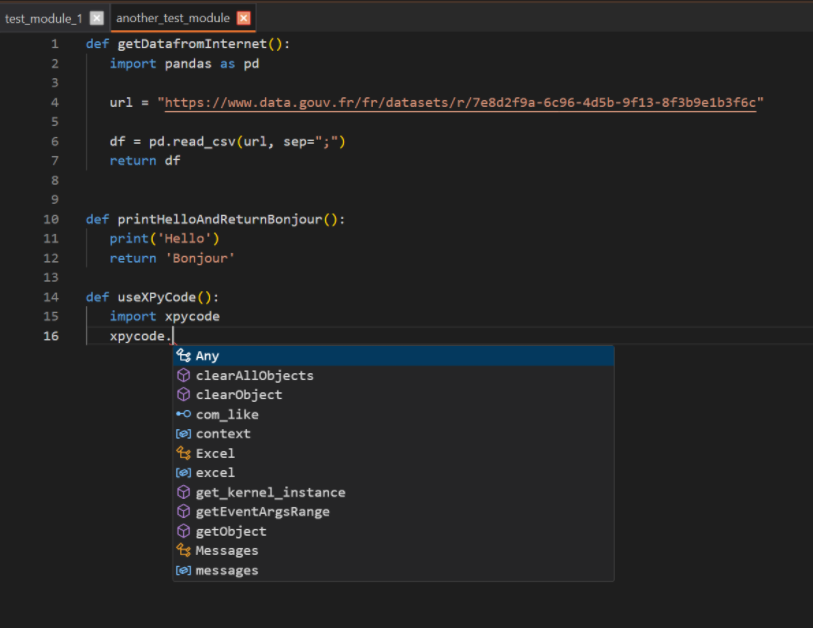
The editor is embedded directly in the IDE using PySide6's WebEngine, providing:
- Full Monaco Editor feature set
- Seamless integration with Python Language Server
- Real-time syntax checking and diagnostics
- Code completion and signature help
- Hover documentation
- Multi-cursor editing
Core Features
Syntax Highlighting
Python syntax is highlighted automatically:
- Keywords -
def,class,if,for, etc. - Strings - Different colors for single/double quoted
- Numbers - Integers and floats
- Comments - Dimmed text for readability
- Functions - Method and function names
- Decorators -
@property,@staticmethod, etc.
The color scheme adapts to your selected editor theme.
IntelliSense / Code Completion
Press Ctrl+Space or start typing to trigger autocomplete:
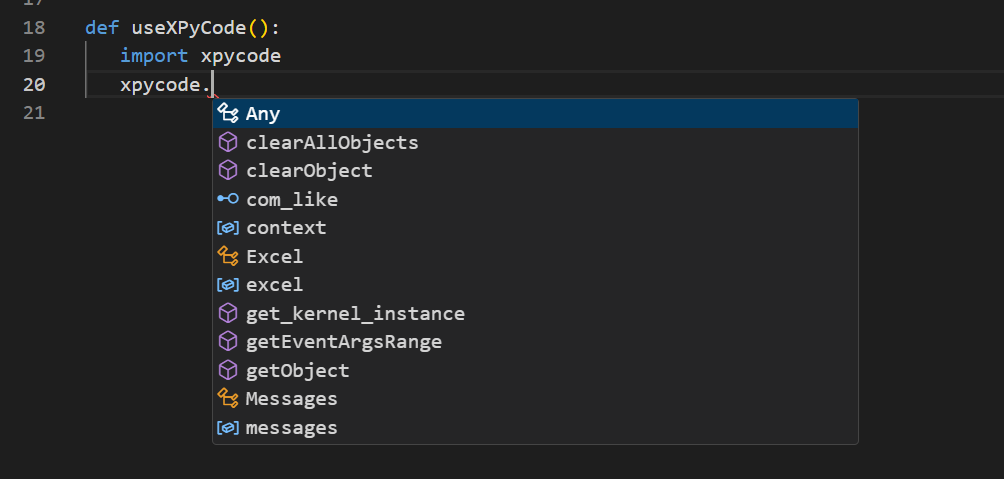
Completion suggestions include:
- Variables - From current scope
- Functions - Defined in your module or imported
- Methods - On objects (e.g.,
list.append()) - Modules - When typing import statements
- Keywords - Python language keywords
- Snippets - Code templates (e.g.,
def,class,if)
Smart Completions
The Language Server analyzes your code context and ranks suggestions by relevance. Press Tab or Enter to accept.
Signature Help
When typing function calls, signature help appears automatically:
Shows: calculate_interest(principal: float, rate: float, years: int) -> float
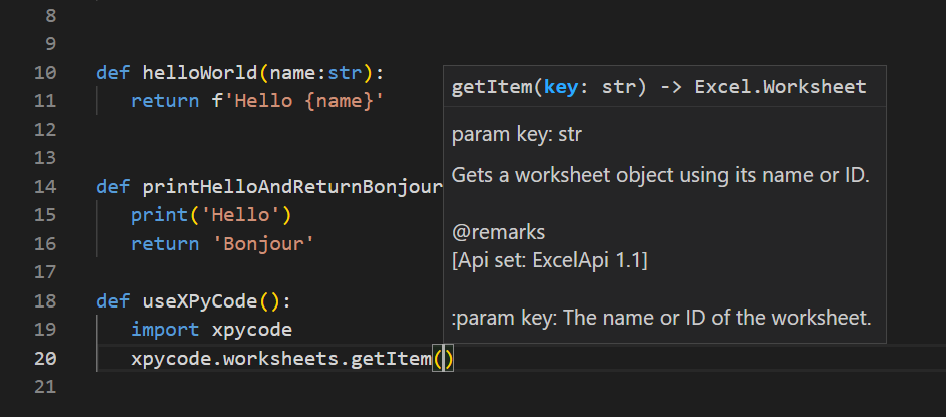
- Displays parameter names and types
- Shows docstring description
- Highlights current parameter as you type
Hover Documentation
Hover over any symbol to see:
- Type information
- Docstrings
- Function signatures
- Module documentation

Two hover modes available in Settings:
- Compact - Brief summary only
- Detailed - Full docstring with examples
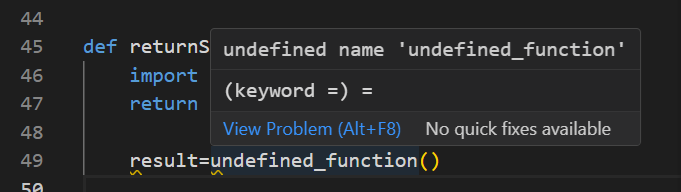
Real-Time Diagnostics
Errors and warnings appear as you type:
- Red underlines - Syntax errors, undefined names
- Yellow underlines - Warnings, unused variables
- Blue underlines - Info-level messages
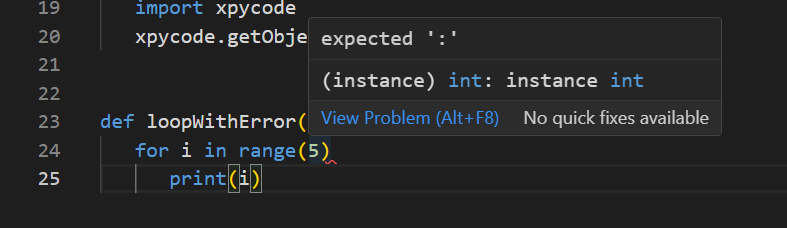
Hover over underlined code to see the error message:
Editing Features
Multi-Cursor Editing
Edit multiple locations simultaneously:
- Hold Alt and click to add cursors
- Or use Ctrl+Alt+Down / Ctrl+Alt+Up to add cursors above/below
- Type to edit all locations at once
- Press Esc to return to single cursor
Perfect for: - Renaming variables in multiple places - Adding similar lines - Bulk editing
Column (Box) Selection
Select a rectangular block of text:
- Hold Shift+Alt and drag with mouse
- Or use ++shift+alt+arrow-keys++
Useful for: - Editing aligned data - Adding prefixes/suffixes to multiple lines - Deleting columns of text
Find and Replace
Find (Ctrl+F):
- Search in current file
- Case-sensitive/insensitive options
- Whole word matching
- Regular expression support
Replace (Ctrl+H):
- Replace single occurrence
- Replace all occurrences
- Preview before replacing
- Regex capture group support
Go to Line
Press Ctrl+G and type a line number to jump directly:
Code Folding
Collapse code blocks to focus on what matters:
- Click the arrow in the gutter next to a function or class
- Or use ++ctrl+shift+bracketleft++ to fold
- ++ctrl+shift+bracketright++ to unfold
Fold these constructs: - Function definitions - Class definitions - Multi-line strings/comments - Import groups
Fold Arrow Visibility
The fold arrow may not always be visible. Click on the space between the line number and the code at function, class, or other foldable definitions to reveal it.
Commenting
Toggle line comments:
- Ctrl+/ - Comment/uncomment current line or selection
- Works with multi-line selections
Indentation
Adjust indentation level:
- Tab - Indent line or selection
- Shift+Tab - Unindent line or selection
Spaces vs Tabs
Configure in Settings → Editor → Insert Spaces. Default is 4 spaces (PEP 8 compliant).
Smart Brackets
Auto-closing brackets, quotes, and parentheses:
- Type
(→ Gets(█)(cursor in middle) - Type
"→ Gets"█" - Type
[→ Gets[█]
Delete both brackets at once with Backspace if nothing is between them.
Auto-Indent
Automatic indentation after:
- Function definitions
- Class definitions
- Control structures (
if,for,while) try/exceptblocks
Formatting
Line Numbers
Always visible in the left gutter. Click a line number to:
- Single click - Place cursor on that line
- F9 on that line - Toggle breakpoint
Minimap
A code overview on the right side shows:
- Entire file structure
- Current viewport position
- Error/warning locations
Enable/disable in Settings → Editor → Show Minimap.
Word Wrap
Wrap long lines to avoid horizontal scrolling:
- Enable in Settings → Editor → Word Wrap
- Or toggle from editor context menu
Useful for: - Docstrings - Long comments - Reading code without scrolling
Font Size
Adjust font size:
- Settings → Editor → Font Size (permanent)
- Ctrl++ / Ctrl+- - Zoom in/out (temporary)
- Ctrl+0 - Reset zoom
Whitespace Visibility
Show spaces and tabs:
- Toggle from editor context menu: View Whitespace
- Useful for debugging indentation issues
Keyboard Shortcuts
Essential editor shortcuts:
| Action | Shortcut | Description |
|---|---|---|
| Find | Ctrl+F | Search in file |
| Replace | Ctrl+H | Find and replace |
| Go to Line | Ctrl+G | Jump to line number |
| Indent | Tab | Indent selection |
| Unindent | Shift+Tab | Unindent selection |
| Duplicate Line | Shift+Alt+Down | Copy line down |
| Move Line | ++alt+up/down++ | Move line up/down |
| Delete Line | Ctrl+Shift+K | Delete entire line |
| Multi-cursor | ++alt+click++ | Add cursor |
| Select All Occurrences | Ctrl+Shift+L | Multi-select word |
| Trigger Suggest | Ctrl+Space | Show completions |
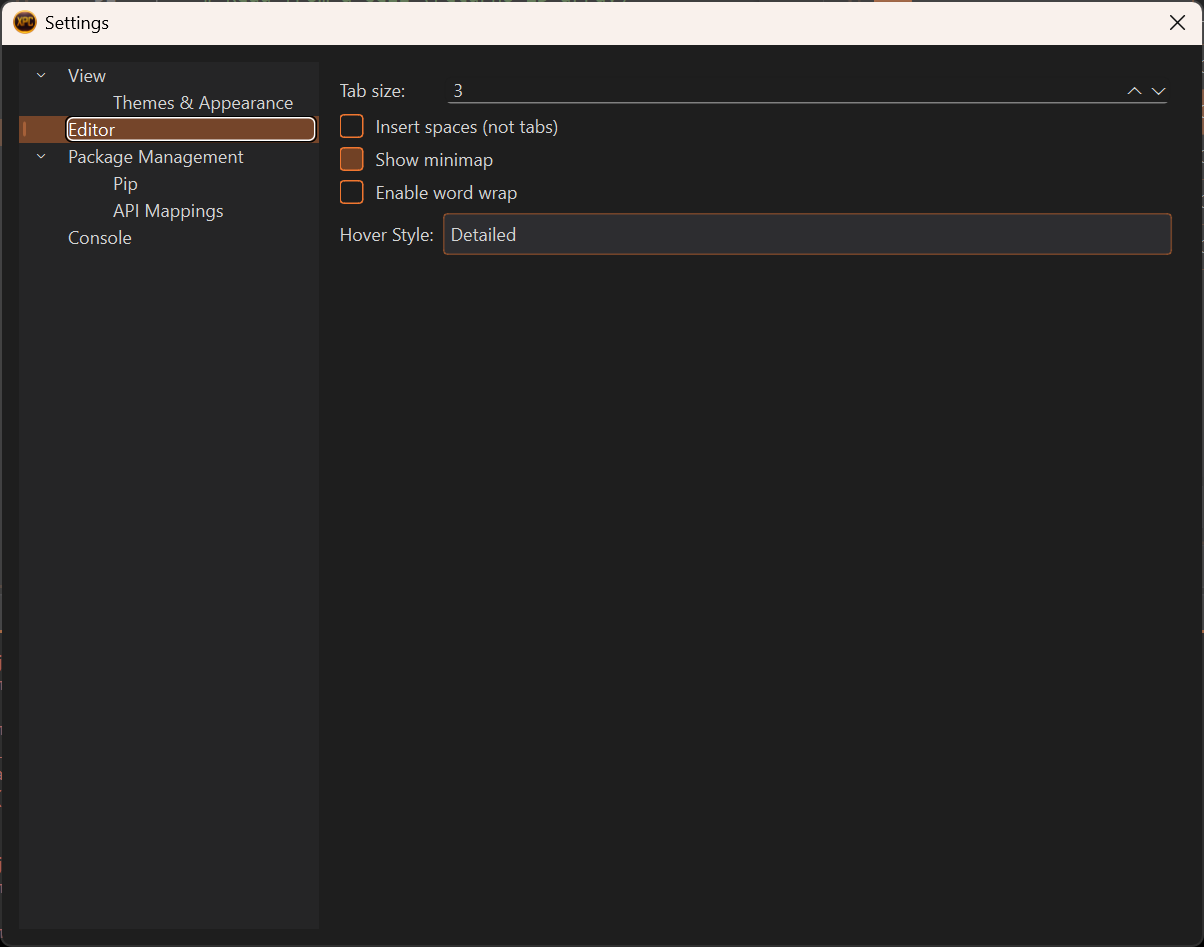
Editor Settings
Configure the editor through File → Settings → Editor:
Tab Size
Number of spaces per indentation level:
- Default: 4 (PEP 8 standard)
- Range: 2-8
Insert Spaces
Use spaces instead of tab characters:
- Default: Enabled (recommended for Python)
- When disabled: Uses actual tab characters
Word Wrap
Wrap long lines:
- Default: Disabled
- Enable for better readability without horizontal scrolling
Minimap
Code overview sidebar:
- Default: Enabled
- Disable to maximize editing space
Integration Features
Breakpoint Support
Click in the gutter or press F9 to toggle breakpoints:
- Red dot - Active breakpoint
- Code pauses here during debugging
- Breakpoints are module-specific
Current Execution Line
During debugging, the current line is highlighted:
- Yellow background - Current execution position
- Automatically scrolls into view
- Updates as you step through code
Excel Integration
The editor knows about the xpycode module:
import xpycode

def thisIsATest():
    # IntelliSense works for xpycode.workbook
    wb = xpycode.workbook  # Autocomplete available
    ws = wb.worksheets.getActiveWorksheet()  # Office.js methods
The Language Server includes type stubs for the xpycode module, providing accurate completions and type checking.
Troubleshooting
Completions Not Working or Incorrect Syntax Highlighting
- Ensure code is syntactically valid
- Try restarting the Kernel
- Restart the IDE (use File → Exit and reopen via the Add-In)
Slow Typing Response
- Disable minimap if file is very large
- Close unused tabs
- Reduce font size (renders faster)
- Check if diagnostics are overwhelming the system
Next Steps
-
Project Explorer
Learn to organize and navigate your Python modules.
-
Debugging
Master debugging with breakpoints and variable inspection.
-
Keyboard Shortcuts
Complete reference of all keyboard shortcuts.
Learn by Doing
The best way to master the editor is through practice. Try different features as you write Python code!