IDE Overview
The XPyCode IDE is a full-featured development environment built specifically for Python-in-Excel workflows. It provides everything you need to write, debug, and manage Python code within your Excel workbooks.
Main Window Layout
The IDE uses a flexible dock-based layout with these main components:
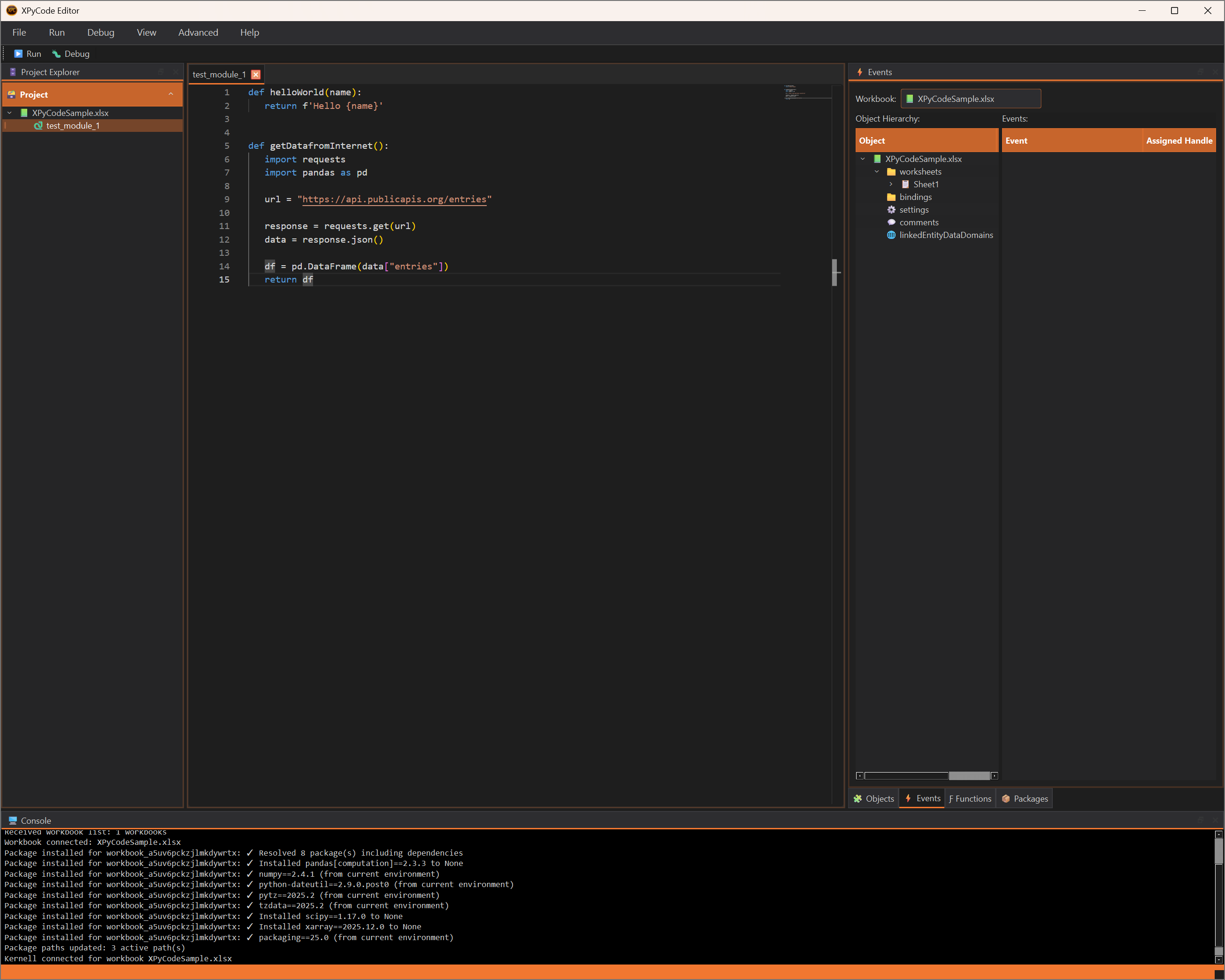
Left Dock: Navigation
The left side houses on panel:
- Project Explorer - Navigate workbooks, sheets, and modules
Right Dock: Utilities
The right side houses multiple tabbed panels:
- Functions - Publish Python functions to Excel
- Packages - Install and manage Python packages
- Events - Configure Excel event handlers
- Objects - View and manage Python objects in memory
Center: Code Editor
The central area displays:
- Welcome Tab - Quick start guide and recent files
- Monaco Editor Tabs - One tab per open Python module
- Powered by Microsoft's Monaco Editor (same as VS Code)
- Full syntax highlighting, IntelliSense, and diagnostics
Bottom Dock: Console and Debug
The bottom section contains:
- Console - Output, errors, and execution logs
- Debug Panel - Variables, call stack, watch expressions, and debug console (visible during debugging)
Top: Menu Bar and Toolbar
- File - Settings, exit
- Run - Run functions
- Debug - Start debugging, step controls, breakpoint management
- View - Views setup
- Advanced - Advanced functions (Restart Kernel, ...)
- Help - About, documentation links
Key Features
1. Workbook-Centric Organization
Each Excel workbook has its own:
- Python kernel (isolated execution environment)
- Set of Python modules
- Package installation
- Published functions and events
- Objects keeper (save and reuse python objects)
This prevents conflicts between different Excel projects and allows each workbook to have different dependencies.
2. Auto-Save
XPyCode automatically saves your code changes with no action required from you, except saving the Excel workbook itself.
Auto-Save Behavior
Changes are saved to the kernel for immediate use and also saved immediately in Excel. Your code will be persisted when you save the workbook.
3. Smart Code Execution
The IDE intelligently determines which function to run based on your cursor position:
- If the cursor is within a function definition, that function is executed
- If not, a warning is displayed in the console
Mandatory Arguments
If the selected function has mandatory arguments, an error will be raised. Ensure all required parameters are provided or use default values.
4. Integrated Debugging
Full debugging support with:
- Breakpoints (F9 to toggle)
- Step over (F10), step into (F11), step out (Shift+F11)
- Variable inspection
- Watch expressions
- Call stack navigation
5. Real-Time Feedback
As you type, you get:
- Syntax errors - Underlined in red
- Warnings - Underlined in yellow
- Code completion - Suggests functions, variables, methods
- Hover information - Shows documentation and type info
- Signature help - Parameter hints for functions
Themes and Appearance
XPyCode supports full theming:
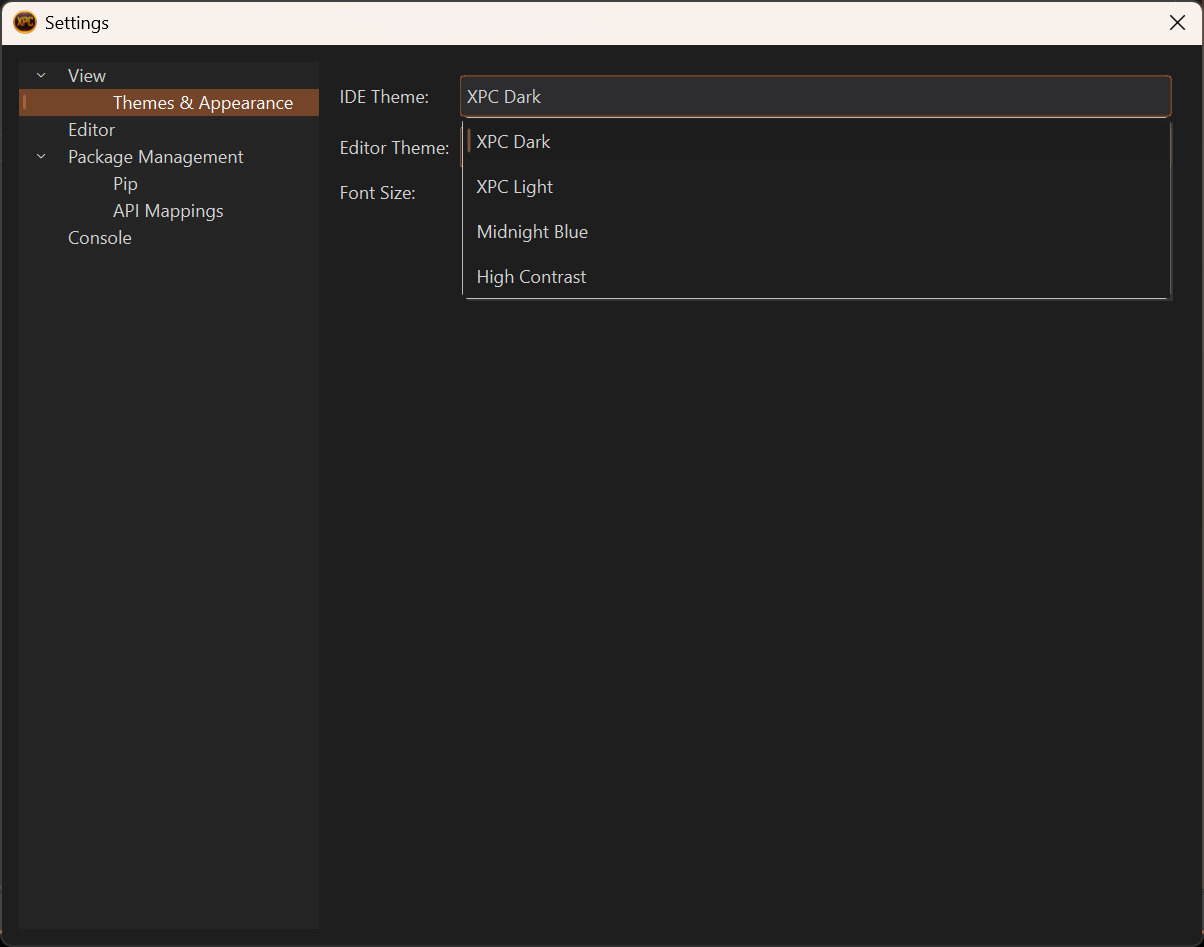
IDE Themes
- XPC Dark (default) - Dark theme optimized for long coding sessions
- XPC Light - Light theme for bright environments
- Midnight blue - Dark theme using dark blue instead of black
- High Contrast - Maximum contrast for accessibility
Editor Themes
- VS Dark - Visual Studio Code dark theme
- VS Light - Visual Studio Code light theme
- High Contrast Black - Maximum contrast for accessibility
- High Contrast Light - Light high contrast theme
- XPC Midnight blue - Dark theme using dark blue instead of black
Change themes in File → Settings → View → Themes & Appearance.
Window Management
Dock Panels
All panels can be:
- Resized - Drag the splitters between panels
- Closed - Click the X button (reopen from View menu)
- Moved - Drag the title bar to dock elsewhere
- Floated - Undock to create floating windows
- Tabbed - Combine multiple panels in one dock area
Tab Management
Editor tabs support:
- Multiple files open - Switch between modules with Ctrl+Tab
Quick Actions
The toolbar provides one-click access to common operations:
| Icon | Action | Shortcut | Description |
|---|---|---|---|
| ▶️ | Run | F5 / Ctrl+R | Execute current code |
| 🐛 | Debug | Shift+F5 | Start debugging |
Project Structure
XPyCode organizes code hierarchically:
- Workbooks - Top-level items (one per open Excel file)
- Modules - Python in-memory modules containing your code
Keyboard Shortcuts
Essential shortcuts for efficient coding:
| Action | Shortcut |
|---|---|
| Run code | F5 or Ctrl+R |
| Debug code | Shift+F5 |
| Toggle breakpoint | F9 |
| Step over | F10 |
| Step into | F11 |
| Step out | Shift+F11 |
| Continue | Shift+F5 |
| Find | Ctrl+F |
| Replace | Ctrl+H |
| Go to line | Ctrl+G |
See the complete Keyboard Shortcuts Reference for all shortcuts.
Extensions and Integrations
Language Server Protocol
XPyCode includes a Python Language Server for:
- Real-time linting with pyflakes
- Advanced code completion with Jedi
- Go to definition
- Find references
- Symbol search
Monaco Editor
The code editor is powered by Monaco Editor (from VS Code):
- Multi-cursor editing
- Column selection
- Rich IntelliSense
- Bracket matching
- Code folding
- Minimap (optional)
Performance Tips
For Large Modules
- Use code folding to collapse functions
- Disable minimap if it slows rendering: Settings → Editor → Minimap
- Split large modules into smaller, focused files
For Many Workbooks
- Close workbooks you're not actively using
- Each workbook has its own kernel, which uses memory
- The IDE shows only open workbooks
Next Steps
Explore each IDE component in detail:
-
Code Editor
Deep dive into Monaco Editor features and capabilities.
-
Project Explorer
Learn to navigate and organize your Python modules.
-
Console
Understanding console output and log filtering.
-
Debugging
Master the debugger with breakpoints and inspection.
Need Help?
If you encounter issues, check the Troubleshooting Guide or consult the specific component guides above.