Project Explorer
The Project Explorer is your primary navigation tool in XPyCode, providing a hierarchical view of open workbooks, their worksheets, and Python modules.
Overview
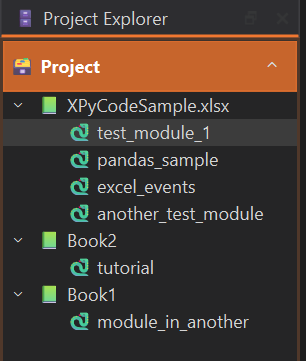
The Project Explorer displays:
- Workbooks - Each open Excel workbook
- Worksheets - Excel sheets within each workbook (for reference)
- Modules - Python .py files attached to the workbook
Tree Structure
📗 Sales_Report.xlsx
├── 🐍 analysis (module)
├── 🐍 report (module)

📗 Budget_2024.xlsx
└── 🐍 budget_calcs (module)
Workbook Node
Top-level items representing open Excel files:
- Icon: 📗 Excel workbook icon
- Name: Filename of the Excel workbook
- Expandable: Click to show modules
Module Nodes
Python files containing your code:
- Icon: 🐍 Python file icon
- Name: In-memory Module (e.g.,
analysis) - Double-click: Opens the module in the editor
Adding Modules
Create new Python modules:
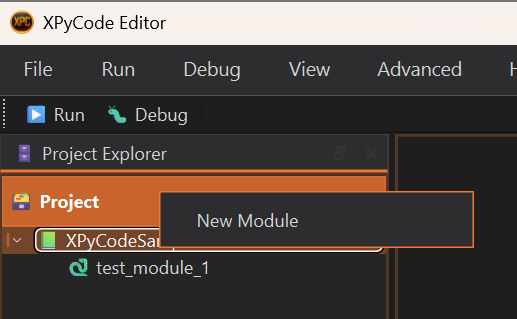
Context Menu
- Right-click on a workbook name
- Select New Module
- Enter module name (without
.pyextension) - Press Enter
Module Naming
Use descriptive names like data_analysis, helpers, calculations. Follow Python naming conventions (lowercase with underscores).
Modules
Double-Click
Double-click a module in the tree to open it in the editor.
Right-Click Menu
Right-click a module:
- Rename - Change module name
- Delete - Remove module (with confirmation)
Keyboard Navigation
- Use arrow keys to navigate the tree
- Press Enter to open selected module
- Press F2 to rename (if supported)
- Press Del to delete (if supported)
Renaming Modules
To rename a module:
- Right-click the module
- Select Rename
- Enter new name
- Press Enter
Rename Effects
Renaming a module doesn't automatically update import statements in other modules—you'll need to update those manually. However, event handlers and UDFs that reference functions from this module are automatically updated.
Deleting Modules
To delete a module:
- Right-click the module
- Select Delete
- Confirm the deletion
Permanent Deletion
Deleted modules cannot be recovered. The code is removed from the business layer permanently. Additionally, event handlers and UDFs that use functions from the deleted module are also removed.
Refreshing the Tree
The tree updates automatically when:
- A new workbook is opened in Excel when the Add-in is opened
- A workbook is closed
Working with Multiple Workbooks
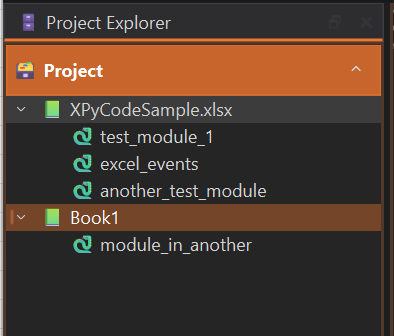
XPyCode supports multiple workbooks simultaneously:
- Each workbook has its own Python kernel
- Isolated environments - No shared state
- Independent packages - Different workbooks can use different package versions
- Separate modules - Module names can duplicate across workbooks
Kernel Isolation
When you run code in Workbook A, it doesn't affect the Python environment in Workbook B. This prevents conflicts and allows independent development.
Troubleshooting
Module Not Appearing
- Check if the module was created successfully (look for confirmation message)
- Verify the workbook is still connected (check add-in in Excel Workbook)
Can't Open Module
- Ensure the workbook is open in Excel (check add-in in Excel Workbook)
- Check if the module exists (it may have been deleted)
- Try closing and reopening the IDE (with Exit)
- Look for error messages in the Console
Tree Not Updating
- Restart the IDE (with Exit)
- Verify the XPyCode server is running
Next Steps
-
Code Editor
Learn about Monaco Editor features and capabilities.
-
Console
View output and errors from your Python code.
-
Function Publisher
Publish your Python functions to Excel.
Efficient Navigation
Master the Project Explorer to navigate large projects efficiently. Use keyboard shortcuts and context menus to speed up your workflow.